Eight exercises from your material
Every exercise is created from your slides and notes and linked to your learning objectives. Real screenshots from the Learngine app.
Read more: How do I turn PDFs and lecture recordings into study material with AI?
Images
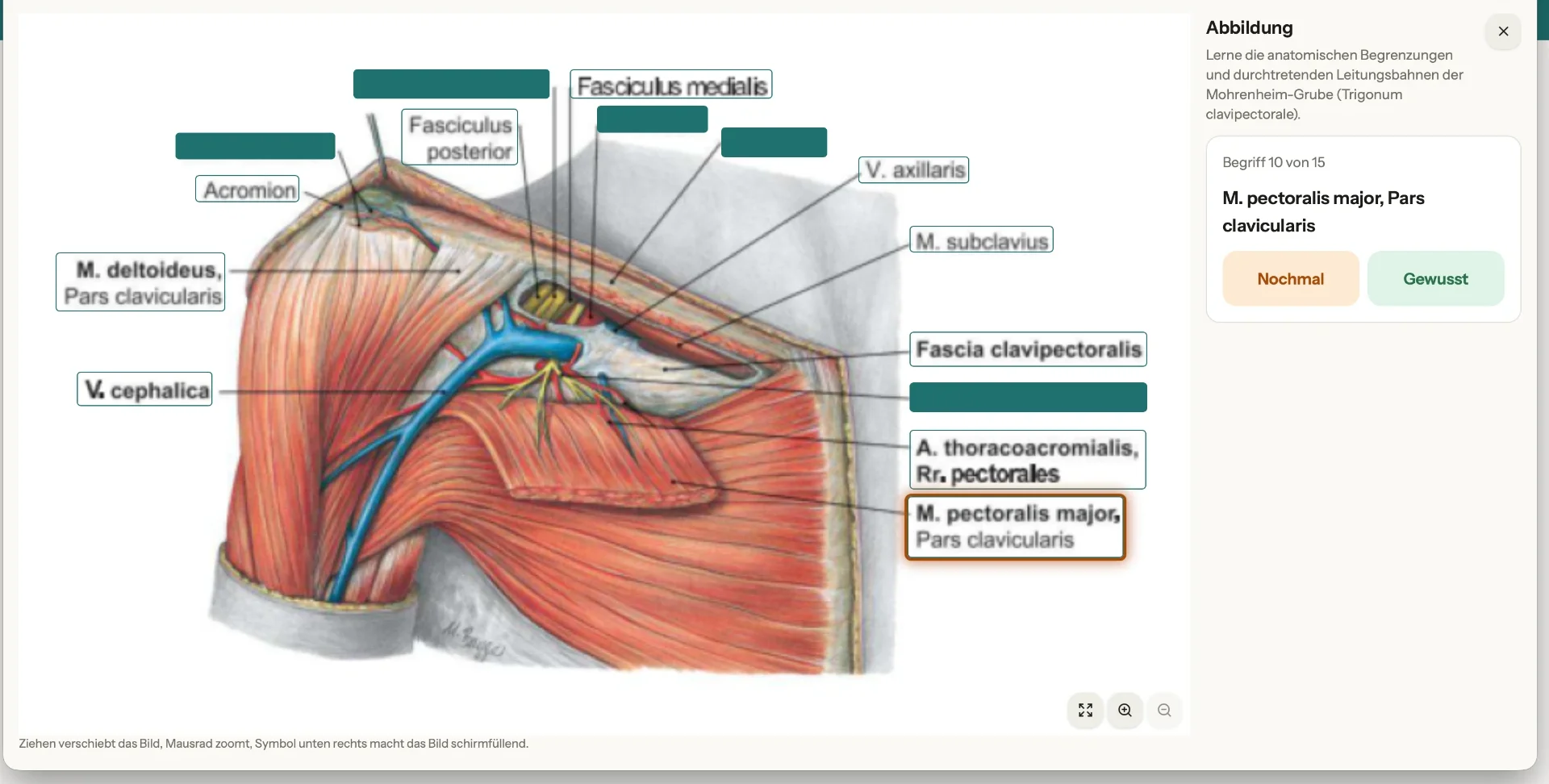
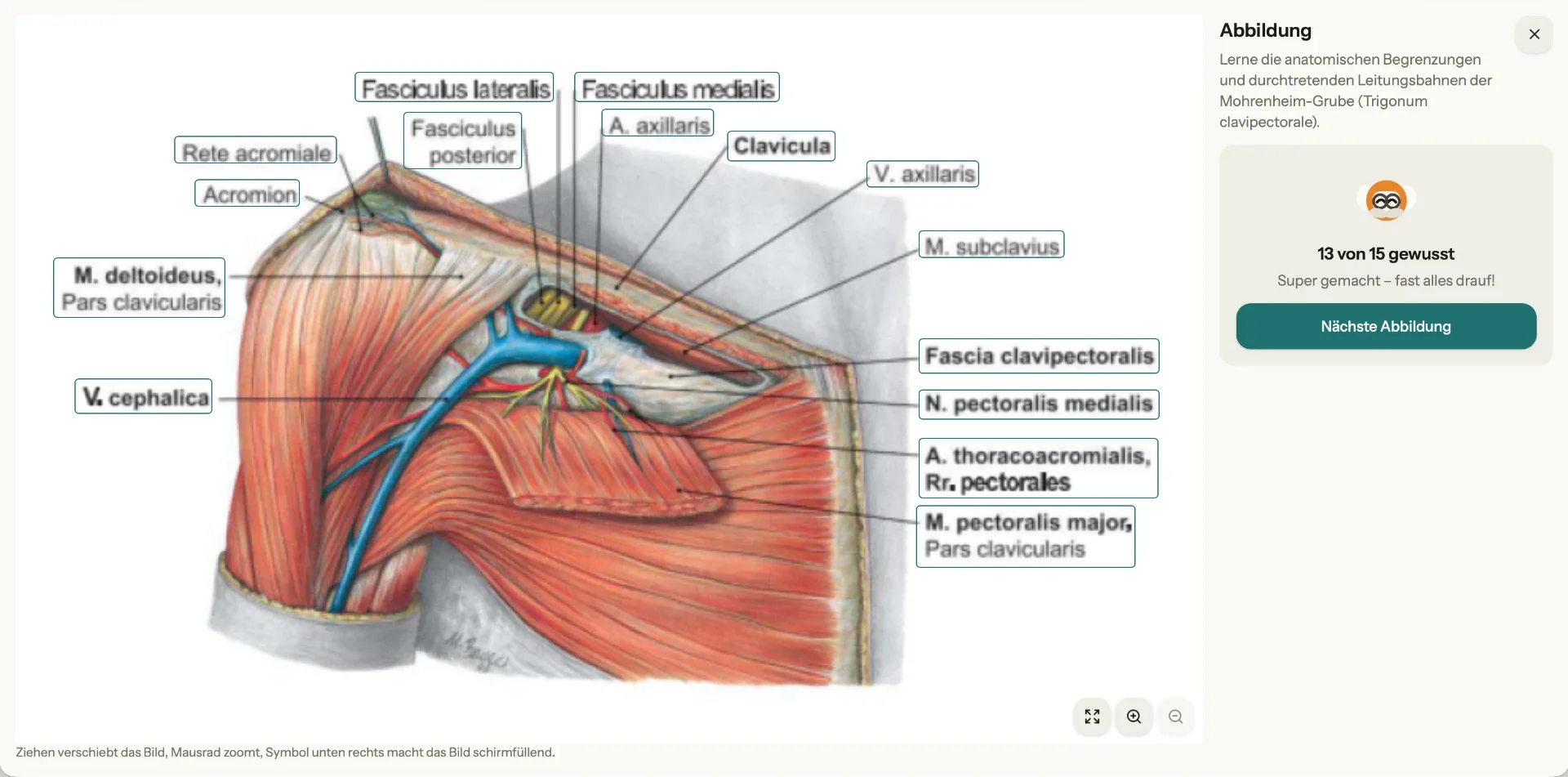
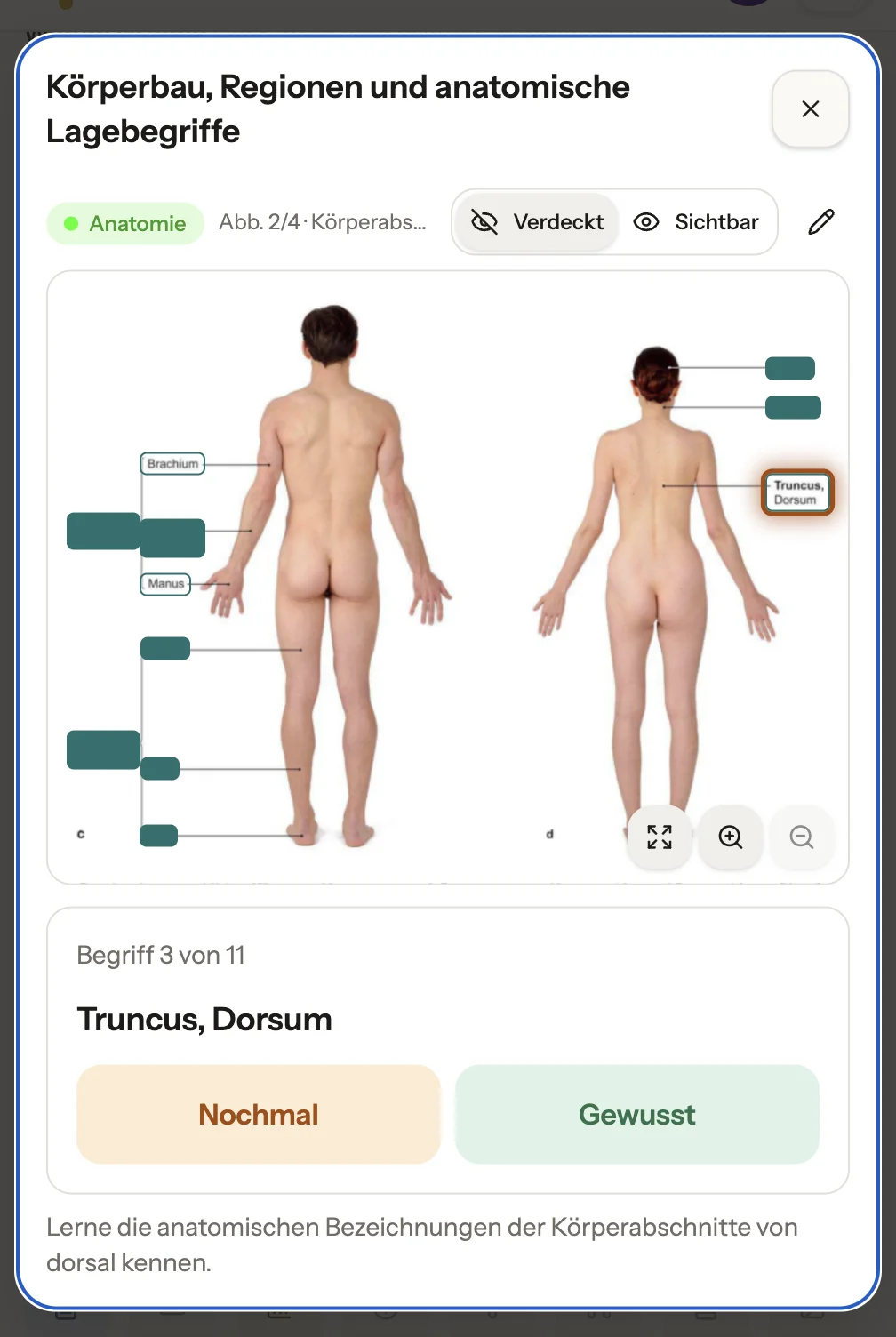
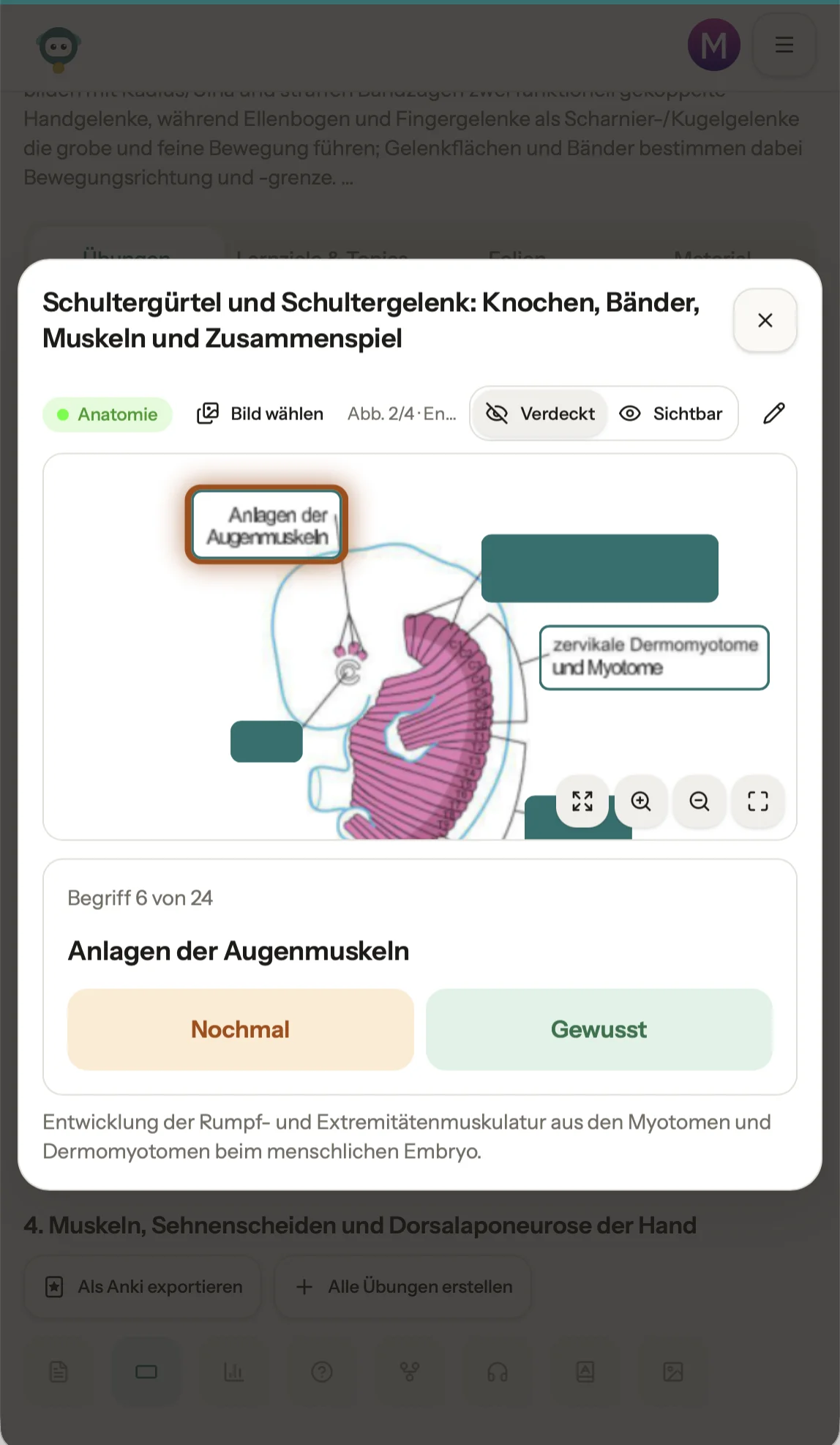
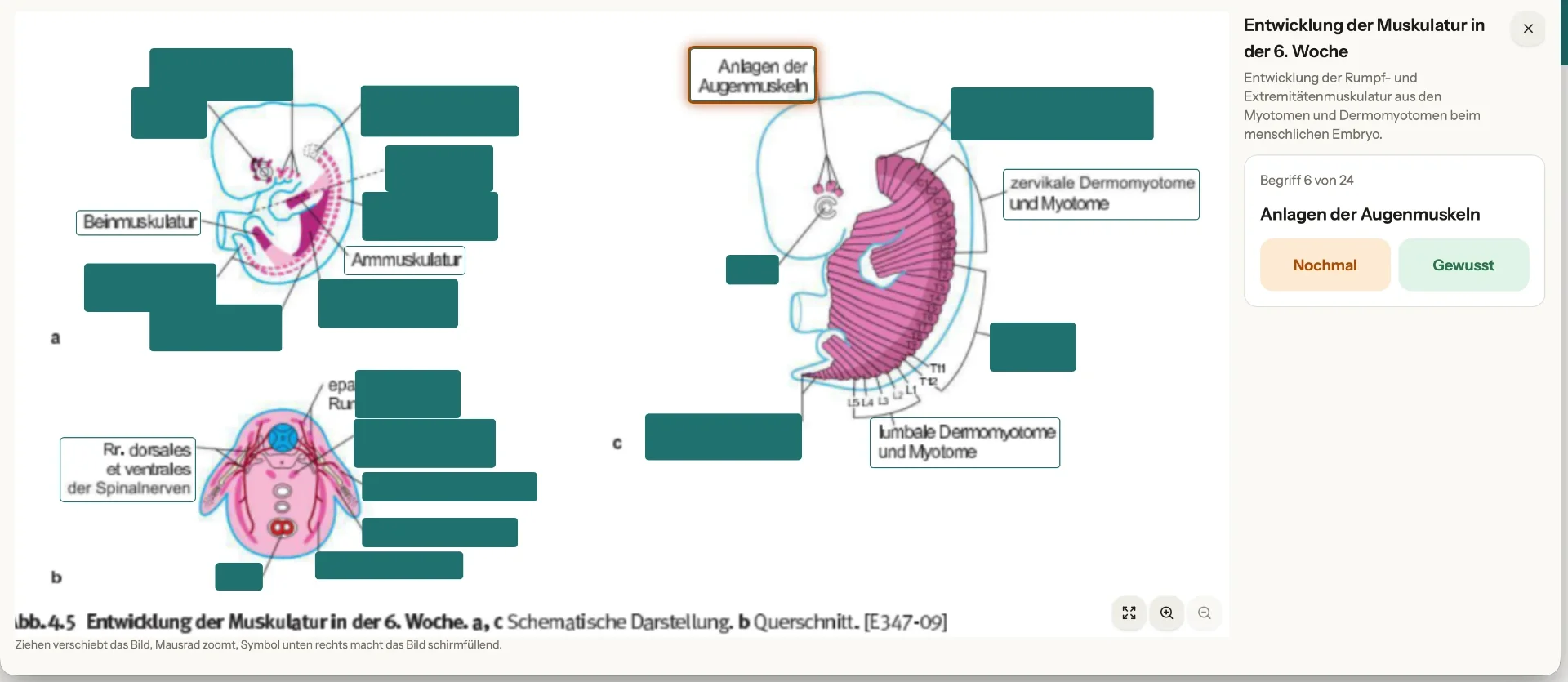
Labels on illustrations from your material are hidden—you name them yourself, field by field. On your phone just as on a large screen.
Label diagrams · from memoryRead more: Visual learning with images and technical terms: what really works at university
Hidden or visible
The labels on your illustration are hidden. Click “Visible” to show them all, or “Hidden” to hide them again.
Term by term
Learngine highlights one field at a time (“Term 6 of 24”). You choose “Got it” or “Again”—at the end, you see how many you knew.
Zoom and full screen
Drag to move the image, use the mouse wheel to zoom, and tap an icon to make the image fill the screen—from your phone to a large display.
Multiple illustrations per topic
Each topic has several illustrations (“Fig. 2/4”). “Choose image” takes you straight to the one you want.
Customise it yourself
Use the pen to edit the fields on your illustration.
Export to Anki
Export a topic's exercises to Anki with one click.
Flashcards
Questions, answers, fill-in-the-blanks, with images too. Your own memory aids become questions—with spaced repetition you don't have to manage.
10 min · on the train, while waitingRead more: Creating flashcards from lecture slides: step by step, with and without AI
Recall it first
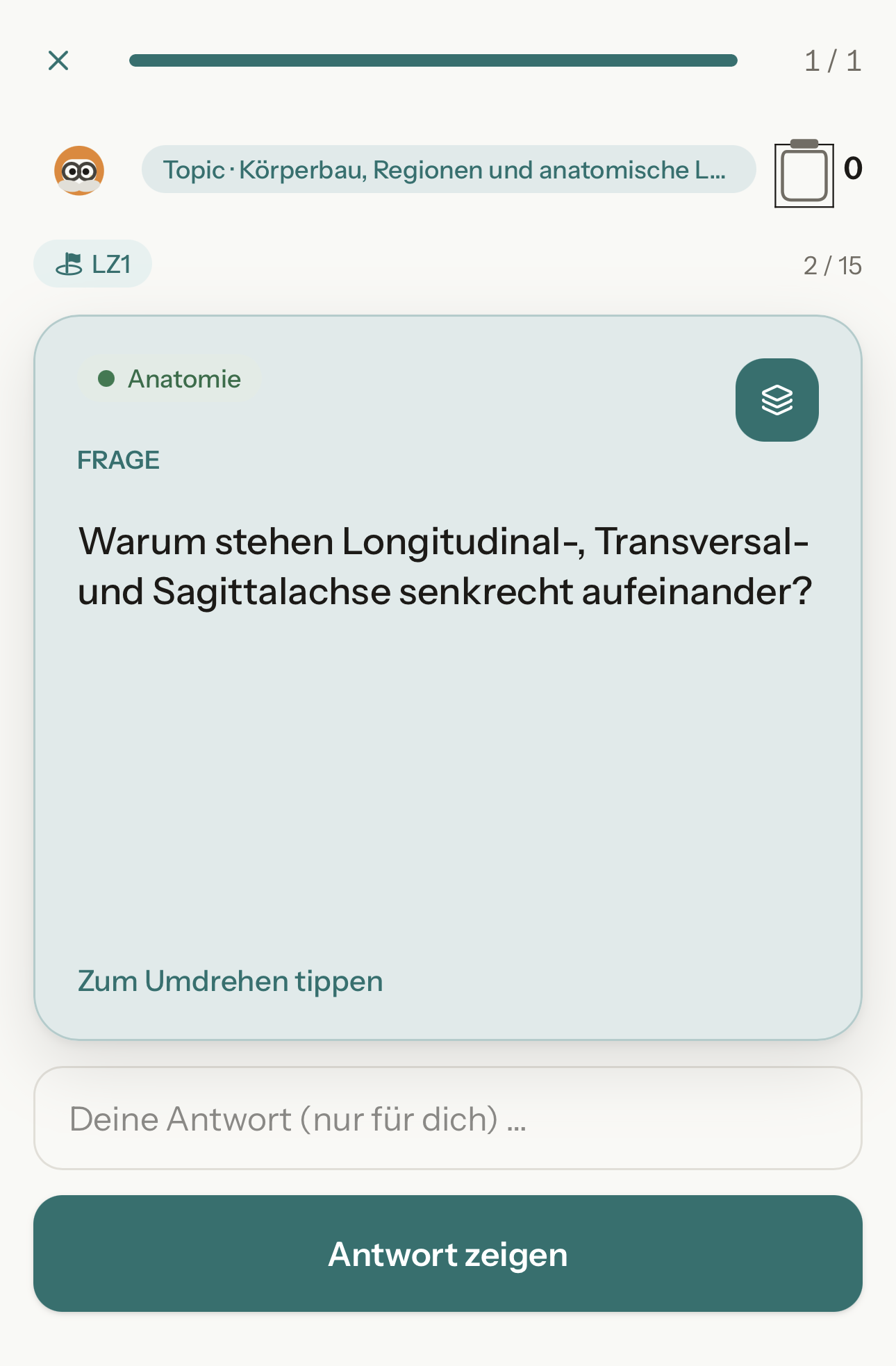
You see the question first. Write your own answer in the private answer field before revealing the solution.
Reveal the answer
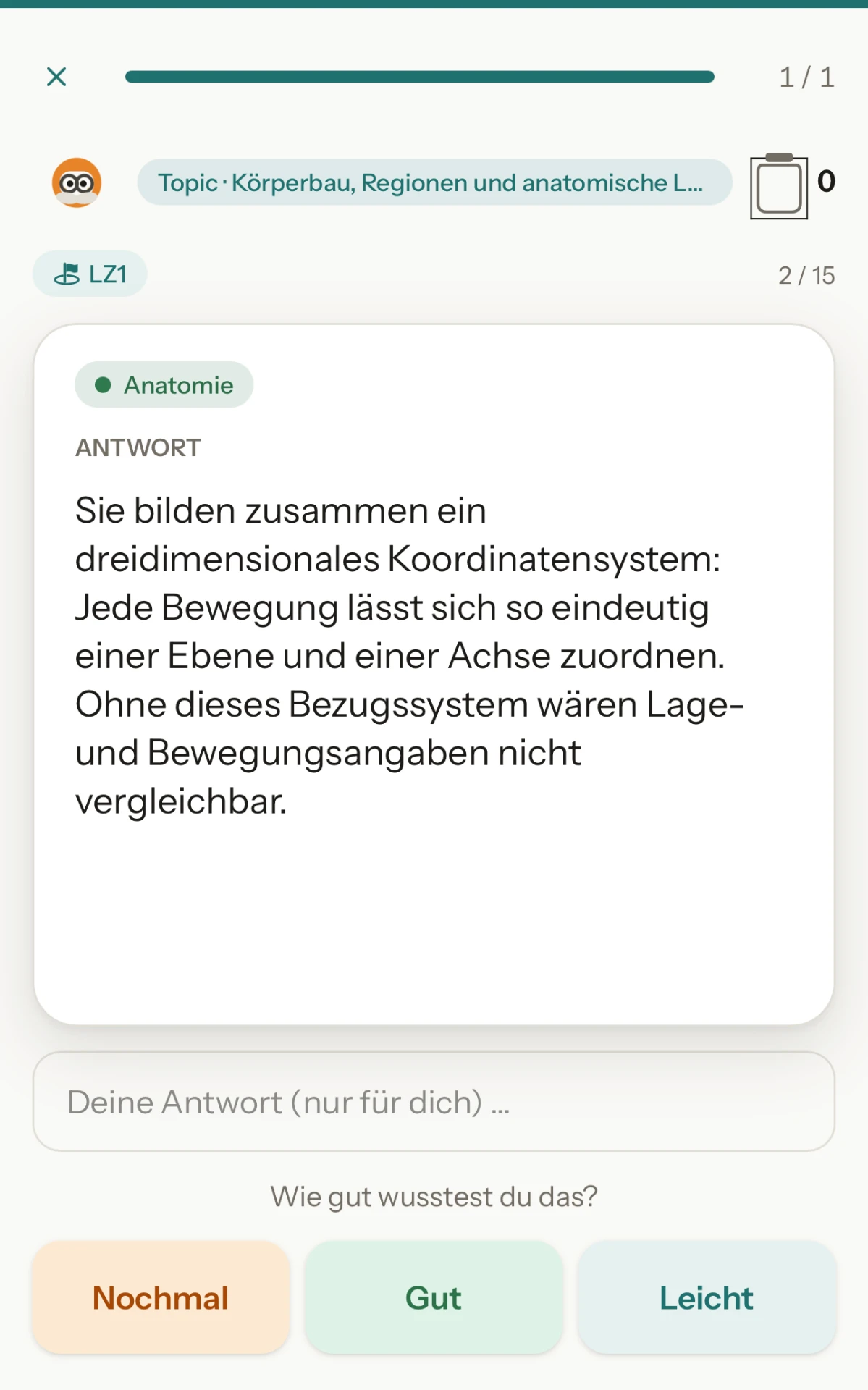
Tap the card or the Show answer button. Then compare your answer with the explanation on the back.
Rate your recall
How well did you know it? Rate your answer with Again, Good or Easy.
Keep the topic and learning objective in view
The topic, learning objective and your position in the deck appear above the card. This example shows card 2 of 15 on anatomy.
Quiz
Exam-style questions with an explanation for every answer. Wrong answers are never shown in red—they're the moment when Coachi explains.
15 min · at your deskPodcast
Two voices, one topic, ten minutes. Hook, mechanism, clinical context, recap. Available offline—for workouts, cooking or your journey home.
10 min · while doing other things
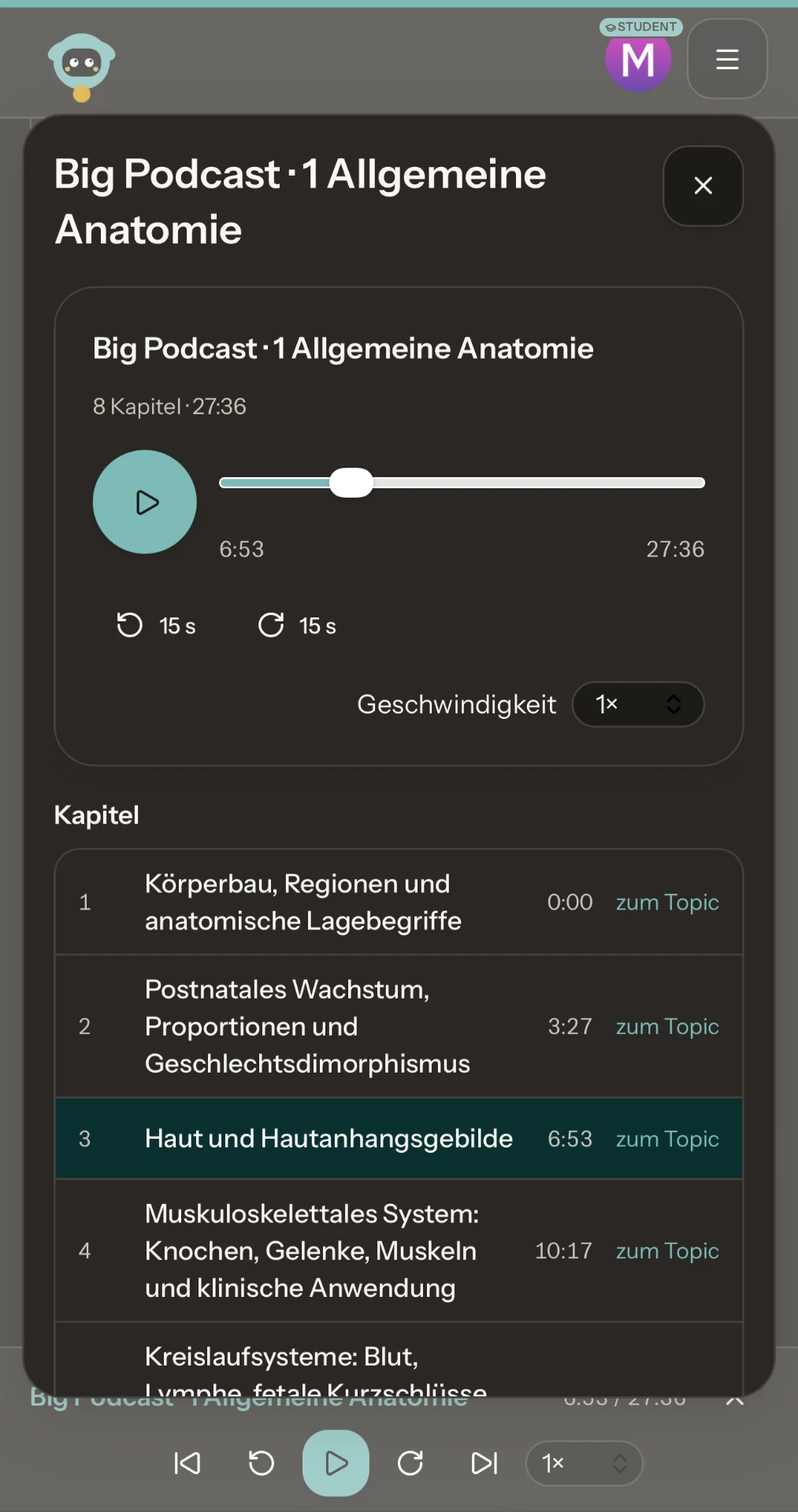
Choose a chapter
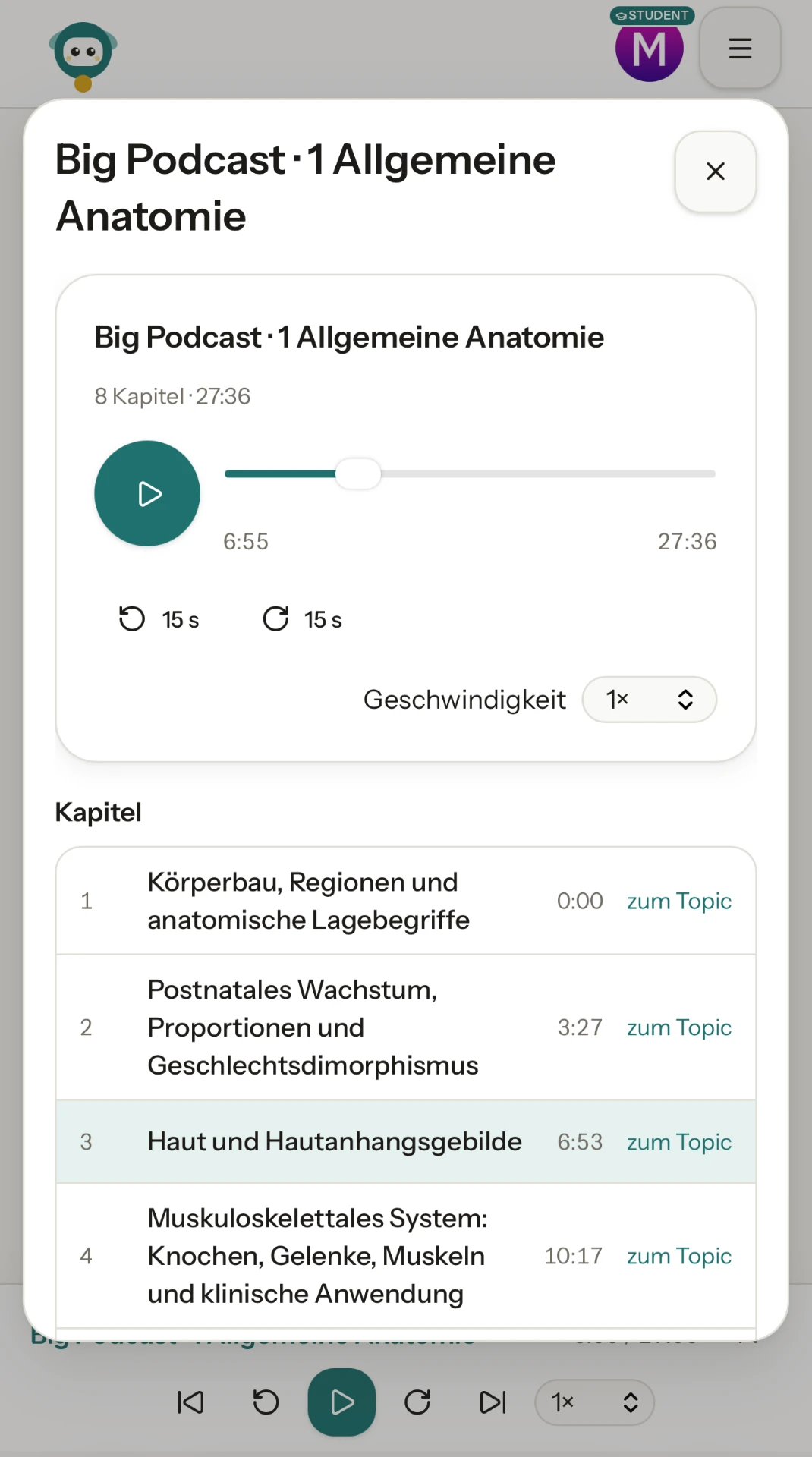
The chapter list shows the topics and their start times. This example has eight chapters on general anatomy.
Listen at your own pace
Pause, adjust playback speed, or skip 15 seconds forwards or backwards—all in the player.
From chapter to topic
The link beside each chapter takes you to its topic.
Abstract
150 words, with the key point first. The topic in two minutes, linked to your learning objectives. Perfect before bed.
5 min · in the eveningDiagrams
Charts from your course notes and diagrams from your slides—labelled, with sources, ready to browse.
5 min · review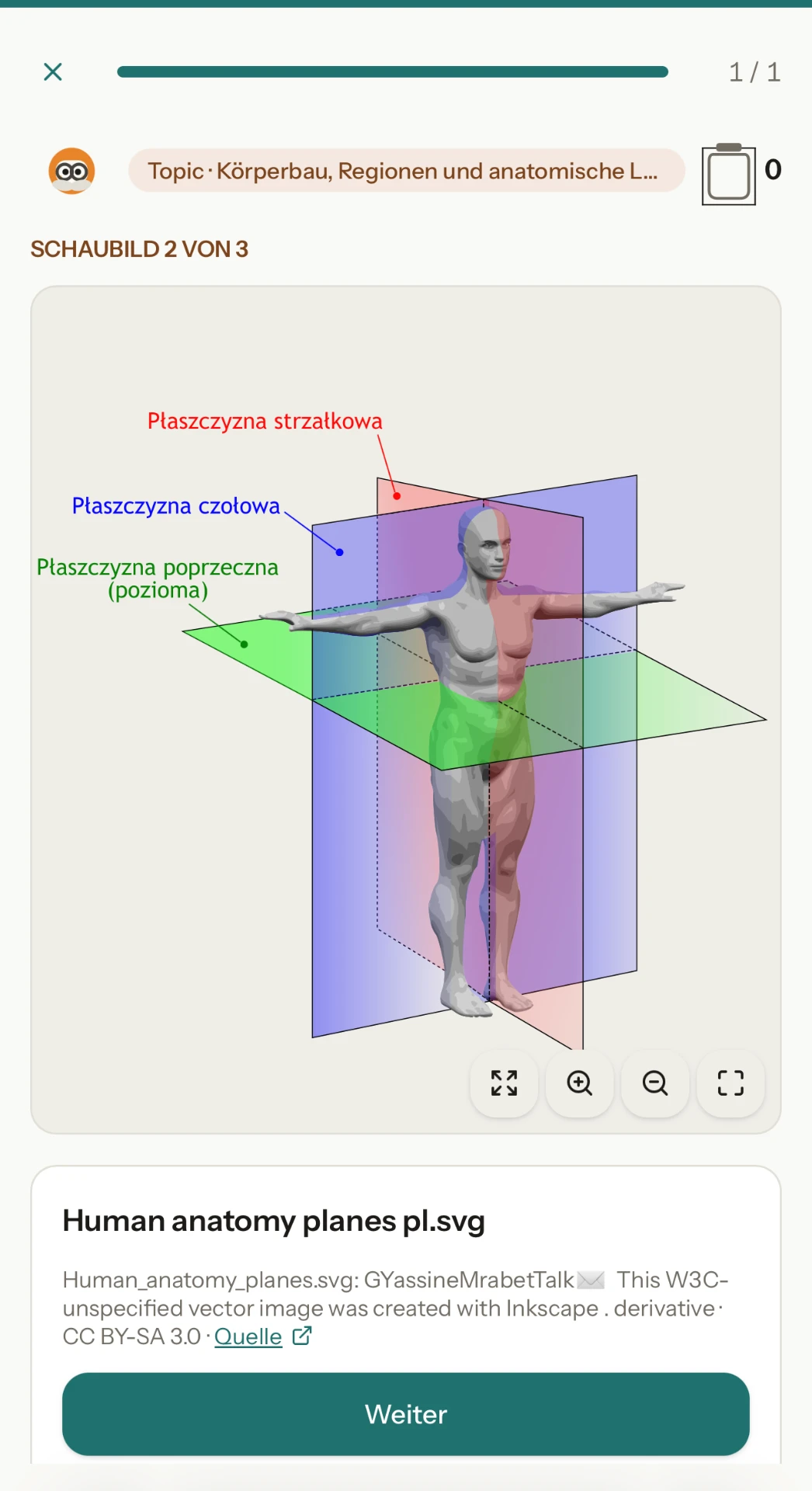
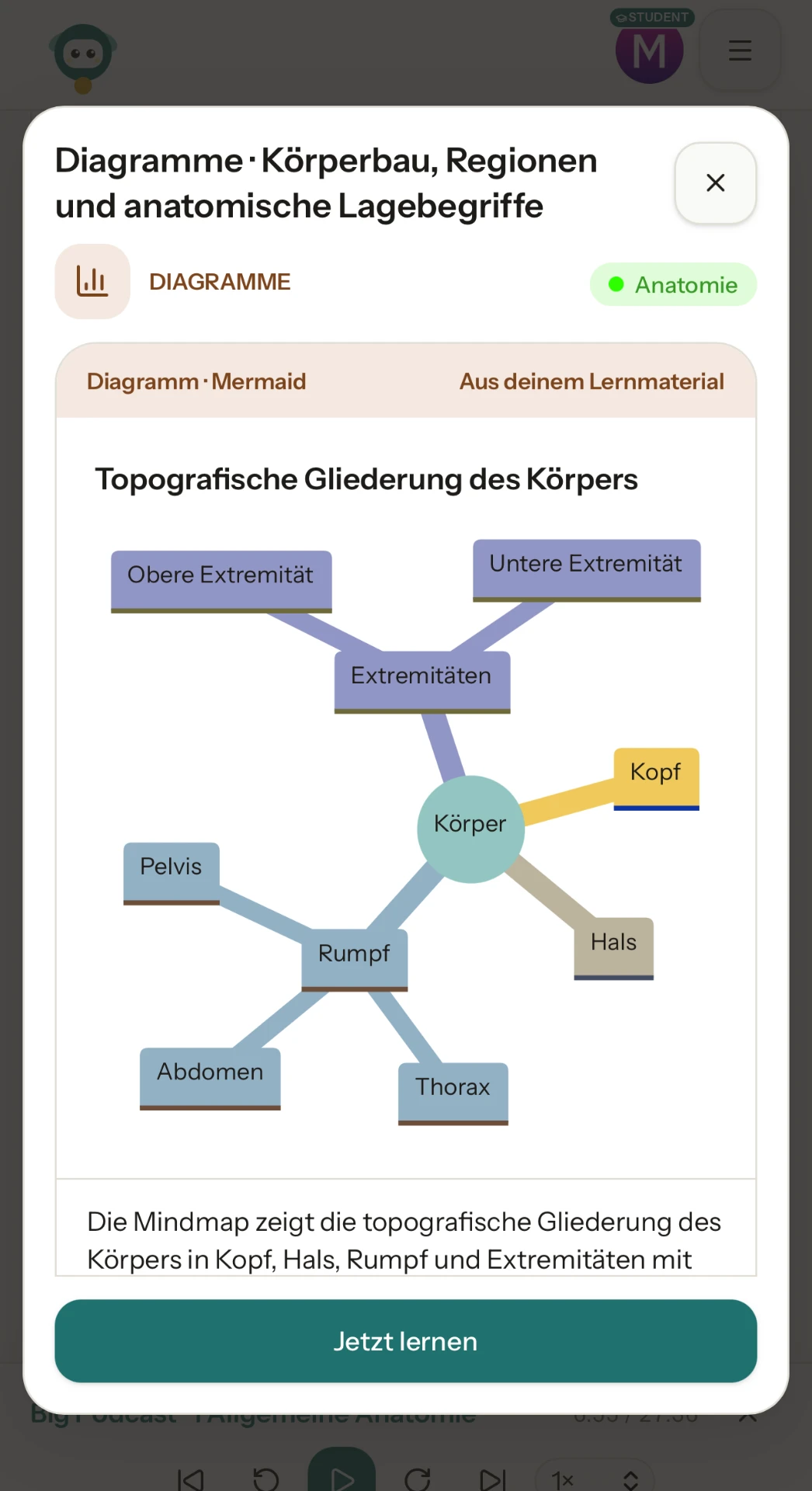
From your study material
The diagram organises the content of your topic. This example shows the body divided into head, neck, trunk and limbs.
Browse illustrations
You can see which illustration you are viewing—here, illustration 2 of 3. Choose Next to move on.
Zoom and full screen
Use the icons on the image to zoom in or out and open the illustration in full screen.
Source beside the image
The title, attribution and licence appear below the illustration. The source link takes you to the original.
Concept map
Connections shown as a map—with gaps you fill in yourself. For a deep study session when you have 40 minutes.
25 min · deep study sessionTerminology
Practise the technical terms from your material in two directions: look at a term and explain it, or read an explanation and find the term.
Both directions · term ⇄ explanationRead more: Visual learning with images and technical terms: what really works at university
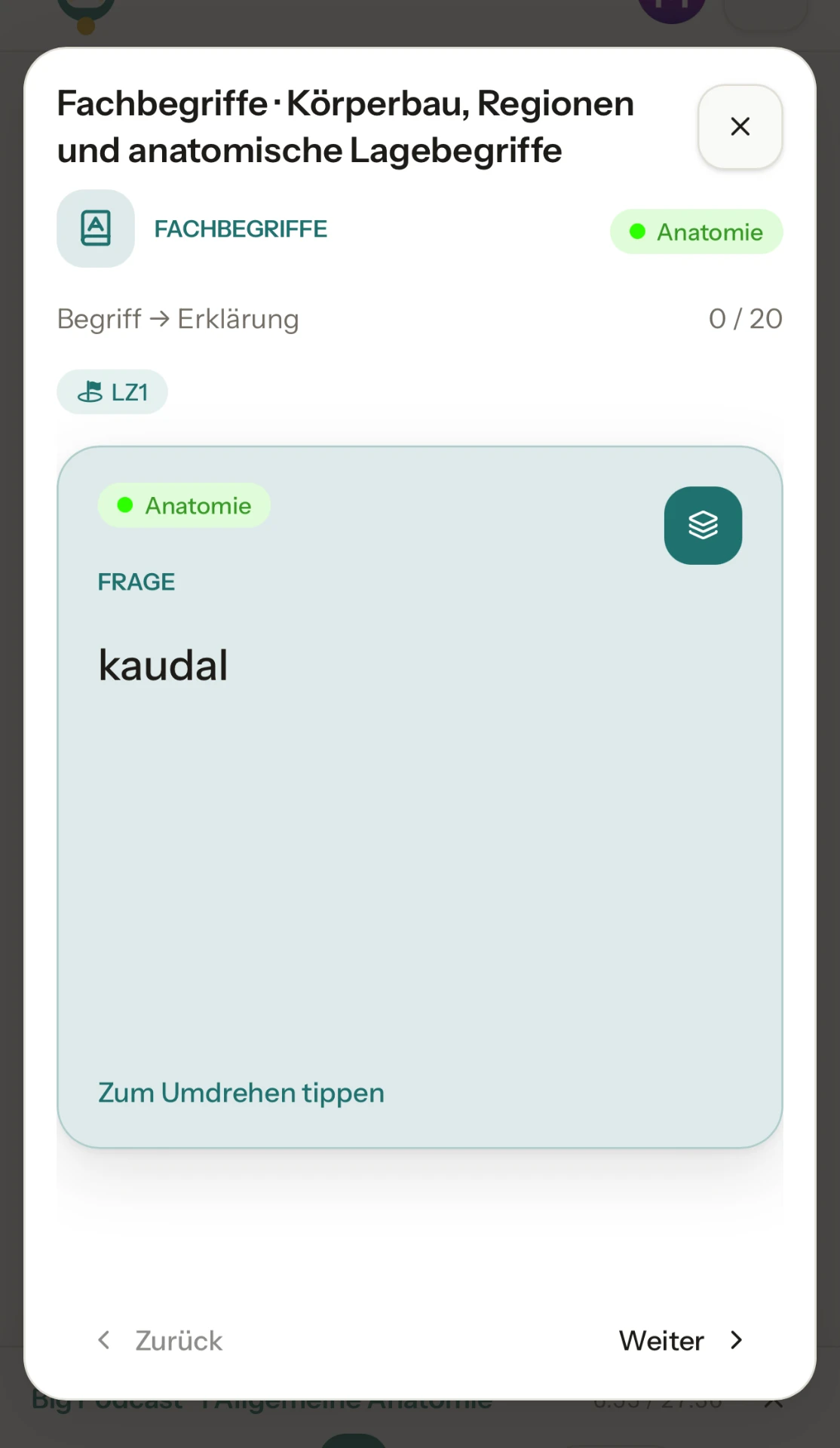
Two directions
The direction appears above the card. This example shows term to explanation: you see the term and explain it. The other way round, you read the explanation and find the term.
Tap to flip
One tap on the card reveals the other side, so you can test yourself before moving on.
Learning objective in view
The learning objective sits right above the card—LZ1 in this example—so you always know what the term belongs to.
Progress and topic
The top right shows how far along you are—0 of 20 here. The topic, anatomy in this example, appears next to it.
Try it yourself
Head to registration—upload your material and get started with your own exercises.
Sign up nowStudy better, with a method
Head to Knowledge: tips and guides for studying at university and school.
Explore Knowledge